How to download Instagram videos and photos on iPhone with SaveGram
Instagram does not allow users to download photos and videos directly from their app. And the problem that many Instagram users are interested in: How to download videos from Instagram? In this article, I will show you how to download Instagram photos and videos on iPhone and iPad with SaveGram.
SaveGram is a free online tool that helps you easily download videos, photos, Reels, Stories and audio from Instagram in the best quality. This tool does not require software installation, works well on many different platforms such as PC, Mac, iPhone and Android.
SaveGram makes downloading content from Instagram easy and fast without needing to install any additional apps or software. If you are a regular user of Instagram and want to download your favorite videos to your iPhone or iPad, then SaveGram is the perfect solution for you.
How to copy Instagram link
Note: SaveGram downloader supports downloading all content on Instagram such as: Videos, Photos, Stories, Reels, Audio and Avatar. The download steps are all the same.
- To download Instagram videos, you need to get the video link from Instagram first (Follow the instructions below to get the Instagram video link).
- Open the Instagram app, navigate to the video you want to download and tap the icon (...) then press the Copy Link option.
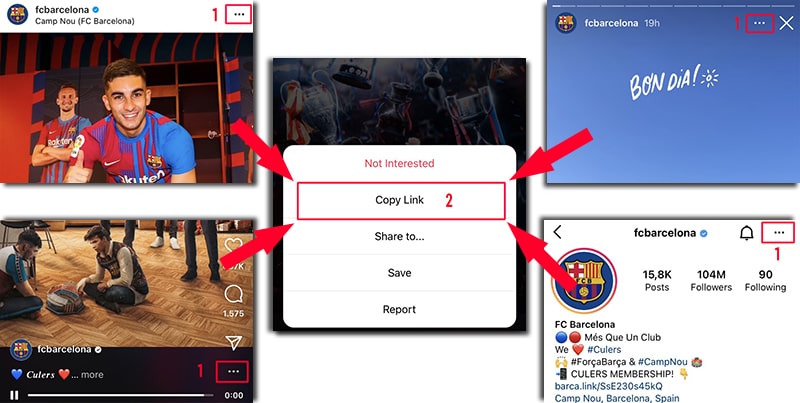
After getting the Instagram video link, you can follow the instructions in one of the two ways below to download the video to your iPhone or iPad.
Method 1: Works with iOS 13+ and iPadOS 13+
From versions iOS 13 and iPadOS 13 and later, Safari has a new feature Download Manager. In this feature you can download files directly through the browser. You can also review the list of files you've downloaded, deleted, and manage them. You can also access your downloaded files through the Files app on iPhone and iPad.
How to download Instagram videos using Safari browser:
Step 1: Go to SaveFast.app using the Safari browser on your iPhone.
Step 2: Paste the Instagram video link into the input box and press the Download button.
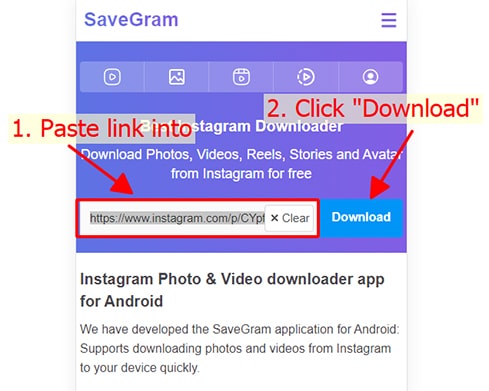
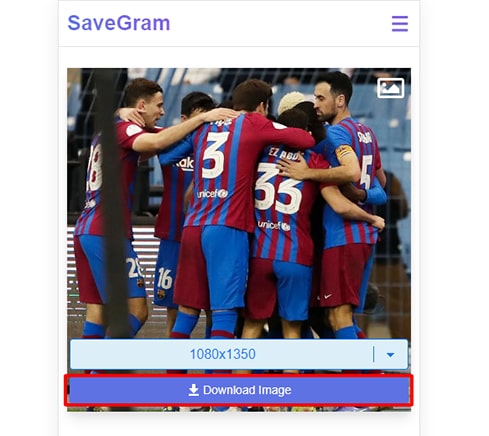
Step 3: The video you want to download will appear, continue to click the Download Video button.
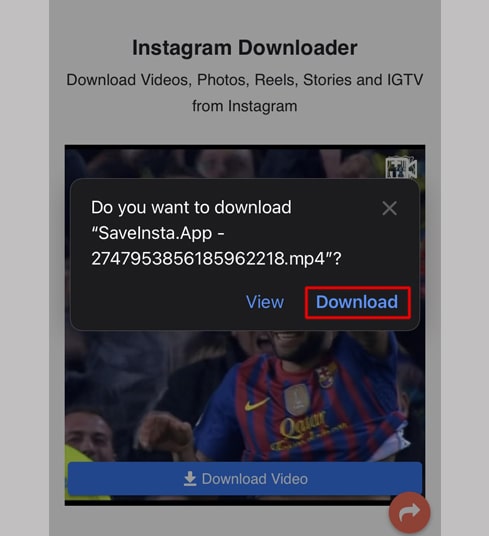
Step 4: Download confirmation message appears, you continue to click Download.
Step 5: You will see a download icon on the top of the browser as shown below, click to see the download progress of the video.
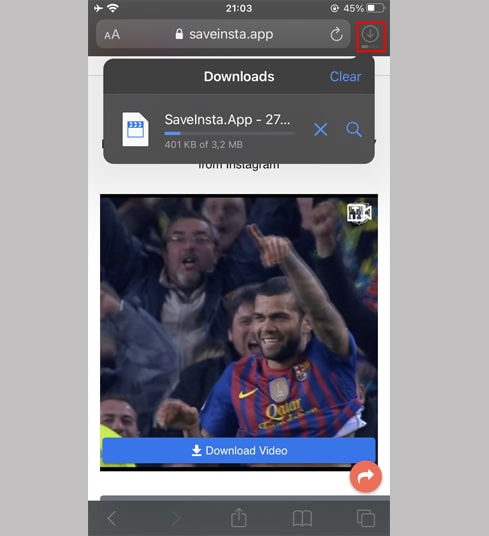
Step 6: Once the video download is complete, continue to open the "Files → Downloads" app on your iPhone. The downloaded video will appear here.
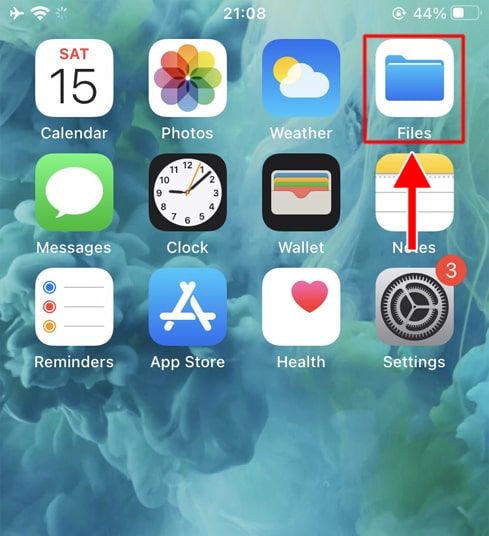
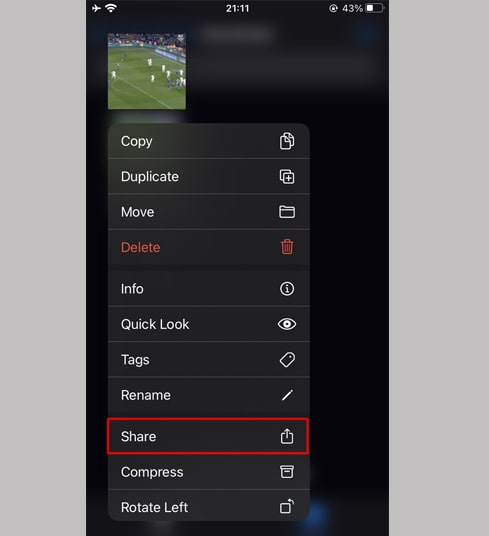
Step 7: Hold your finger on the video, a menu will appear. Click the "Share" button.
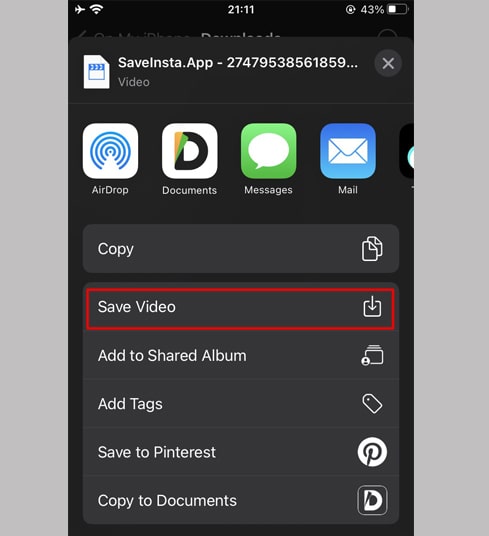
Step 8: Find and click the "Save Video" option.
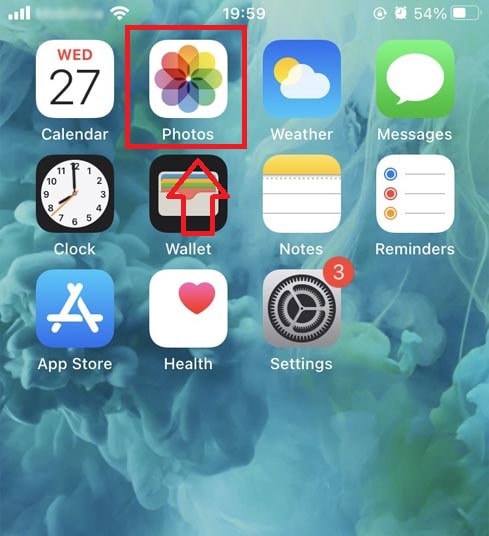
Step 9: Open "Photos" app and enjoy the downloaded video.
Method 2: Use the "Documents by Readdle" app (applies to iOS 12 and below)
This way uses a free file manager app called Documents by Readdle, which should work on most iOS devices.
Step 1: Install and open the "Documents by Readdle" app
- On your iOS device, go to the App Store and search for Documents by Readdle.
- Once the installation is complete, launch Documents by Readdle.
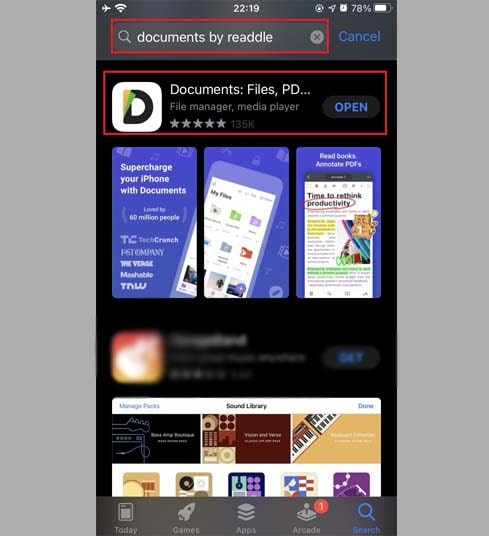
Step 2: Go to SaveFast.app on Documents by Readdle app
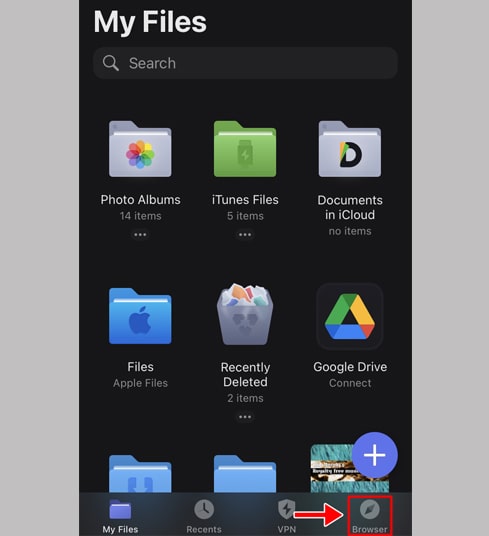
On the "Documents by Readdle" app, tap the browser icon, which looks like the Safari icon (a little compass, on iPhone it's in the bottom right corner, on iPad it's in the left menu), then the web browser will be displayed.
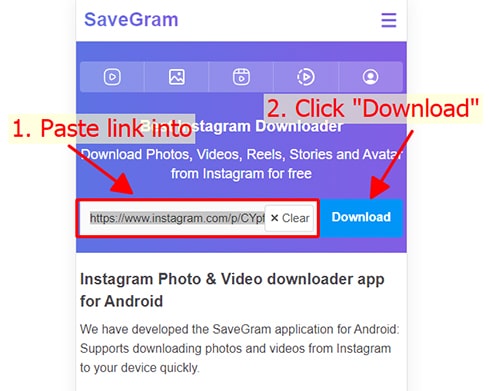
Step 3: Paste the Instagram video link into the input box and press Download.
Step 4: The video you want to download will appear, continue to click the Download Video button.
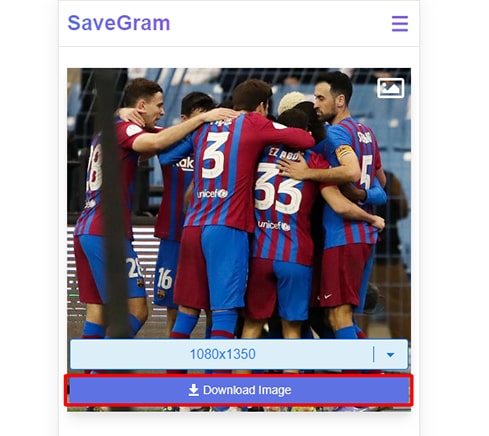
Step 5: You can rename the file then click the "Done" button to finish saving the video.
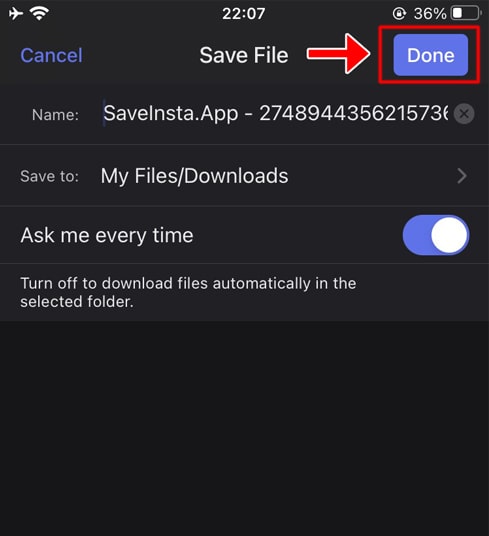
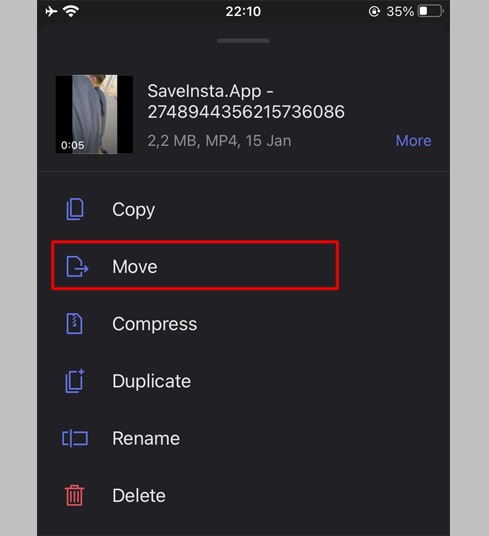
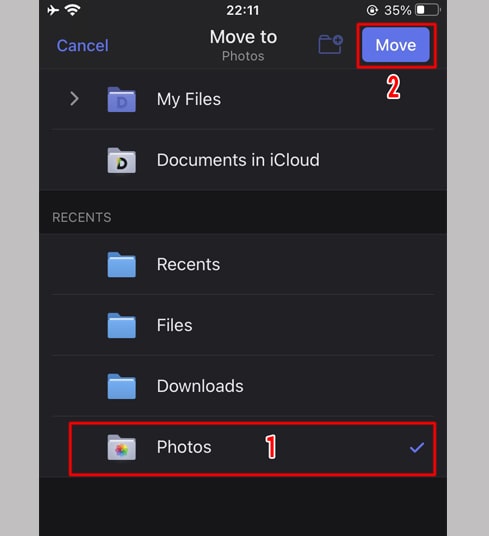
Step 6: Move the downloaded video to the "Photos" folder
- Tap the "My Files" icon in the bottom right corner to see the video download progress.
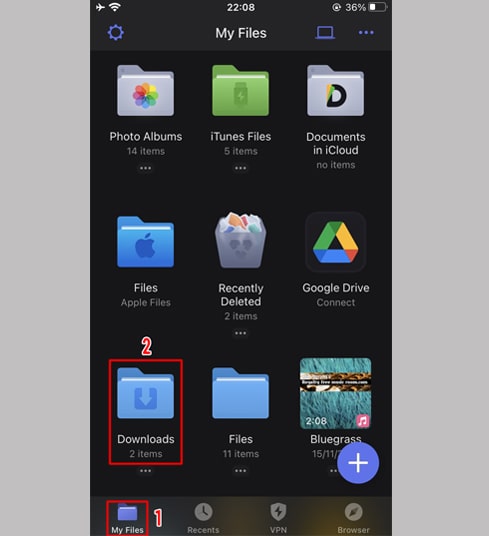
- In the "Downloads" folder, click the three dots icon just below the video, click "Move" → "Photos" to move the video to the "Photos" folder, you can now enjoy videos offline in "Photos" library.
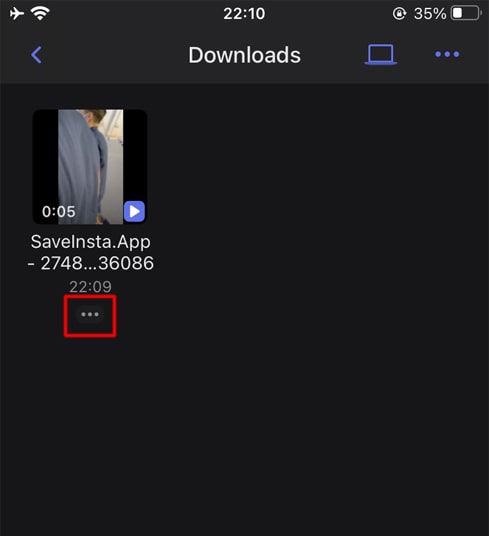
Step 7: Open "Photos" app and enjoy the downloaded video.
During use, if you encounter an error, please contact us for support: contact.savegram@gmail.com